Find your task or topic
Choose your route
Start with your job.
Chime lets customers request appointments and gives staff a workspace for the work that follows.
I am booking
Follow six tasks: choose a service, pick a time, read the terms, enter contact details, handle any deposit and read the result.
I work for the business
Sign into Studio. Use setup to prepare services and openings, or go directly to the appointment, deposit or message you need.
| The fictional example | What stays the same |
|---|---|
| Business and customer | Example Service Studio; Jordan Reed |
| Appointment | Consultation, 30 minutes; October 27, 2026 at 9:00 AM |
| Deposit | USD 20.00; no full service price published |
Why a label may differ
The illustrated customer components use Calendar and Continue to calendar. The live Studio preview uses Time and Continue to times. Follow the matching service and time controls in the edition you use.
How the app groups these tasks
The six tasks sit inside three app stages: Service, Calendar and Reserve. Reserve contains Terms, Contact, Deposit and Done. Deposit appears when required.
Customer task 1 of 6
Choose your service.
Start with what you want the business to do.
Compare the service cards.
You should seeEach card explains the offering and its duration. The example has Consultation at 30 minutes, Repair Session at 60 and Installation at 90.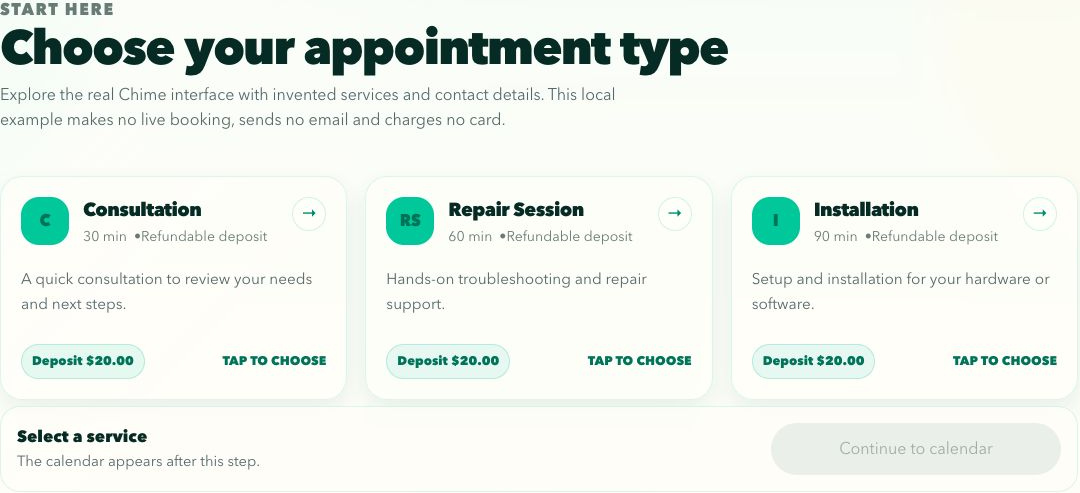
01Compare services before choosing a time. Consultation lasts 30 minutes. Open image ↗ Select Consultation, then Continue to calendar.
You should seeThe calendar uses that service. A different service can have different times and deposit requirements.
Customer task 2 of 6
Pick a date, then a time.
A day with openings still needs a specific time selection.
Choose October 27 in the month view.
You should seeThe example shows 13 openings that day. Next opening and the month controls help you find other dates.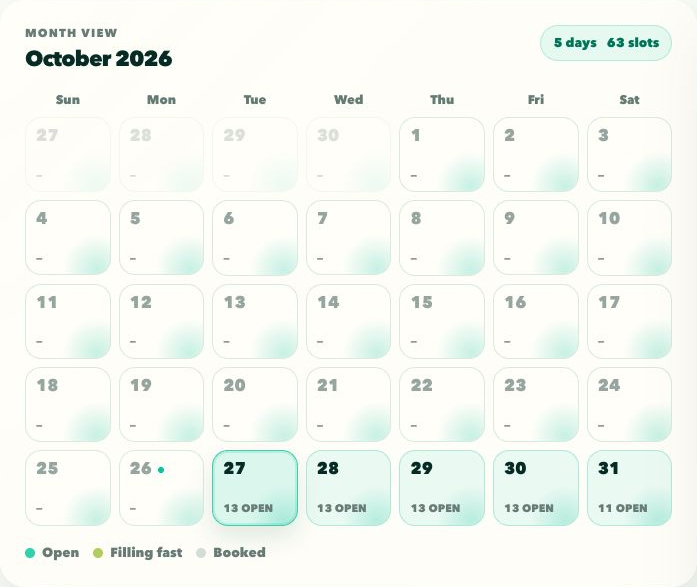
02Use the month view to choose a day with openings. Open image ↗ Select 9:00 AM.
You should seeThe selected summary reads Tue, Oct 27 at 9:00 AM. Booked times are unavailable; Popular is a display cue.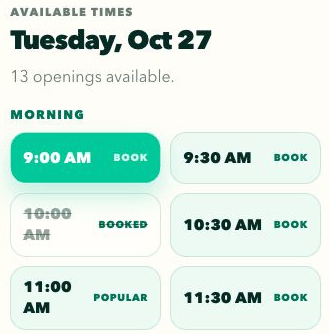
03Choose an available time. Booked and Popular mean different things. Open image ↗ Check the summary, then Continue to terms.
You should seeThe terms screen keeps the chosen appointment visible.
Moving around the calendar
Previous and next day controls move among days with openings. On a narrow screen, the month button and Back to times switch views. Change service revisits the offering. Read the displayed date and time; this guide does not assign a time zone to the customer display.
An opening is a choice
The reviewed server rechecks capacity and service rules on submission. Selecting a time does not guarantee that it remains available.
Customer task 3 of 6
Read before agreeing.
The terms belong to the selected business and appointment.
Read the document and scroll inside it to the bottom.
You should seeThe agreement checkbox becomes available. Scrolling the outer page alone does not complete this gate.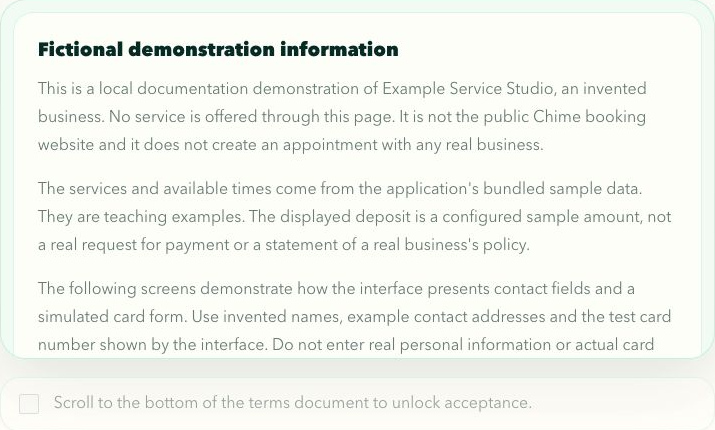
04Scroll inside the document panel to complete the reading gate. Open image ↗ For a real booking, only if you agree
Select I have read and agree to the terms and conditions.
You should seeContinue to contact details becomes available.
05After: the agreement checkbox is available but still unchecked. Open image ↗ Choose Continue to contact details.
You should seeThe contact form opens. Back to calendar lets you revisit the time.
When scrolling is unnecessary
If the entire document already fits, the component recognizes that and makes the checkbox available without requiring a scroll.
Customer task 4 of 6
Add your contact details.
Use an address the business can use to contact you.
Enter Full name and Email.
You should seeValid required values enable the next action. The example uses Jordan Reed and jordan.reed@example.com.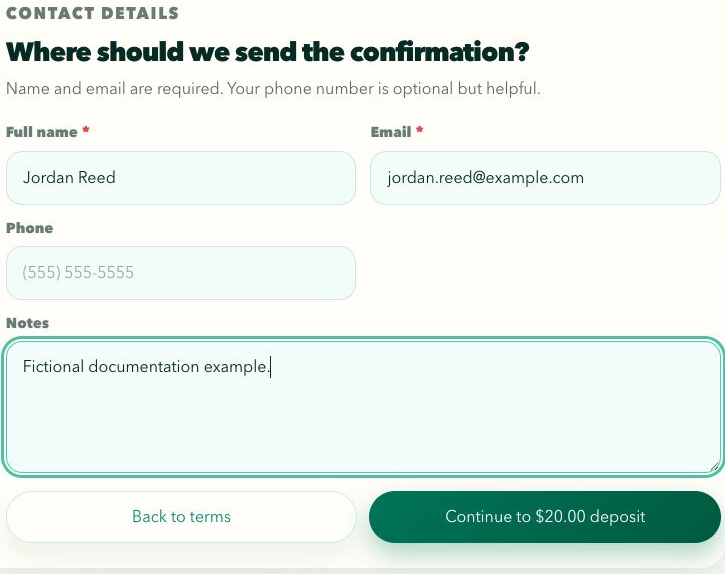
06Valid contact fields make the next action available. Open image ↗ Add Phone or Notes if useful, then check your email address.
You should seeThose default fields are optional. The example note says Fictional documentation example.Choose Continue to $20.00 deposit.
You should seeThe sample opens the deposit screen. A service without a required deposit can instead offer Confirm appointment.
A business can ask for different fields
A business can configure different customer fields. Follow its required markers. Missing or invalid required values keep Continue unavailable. Back to terms returns to the previous stage.
Customer task 5 of 6
Handle the deposit.
If a positive deposit is required, read the amount and mode before using the payment action.
When following this fictional example
Confirm that the example says Test mode.
You should seeIt explicitly states that no real charge will be made.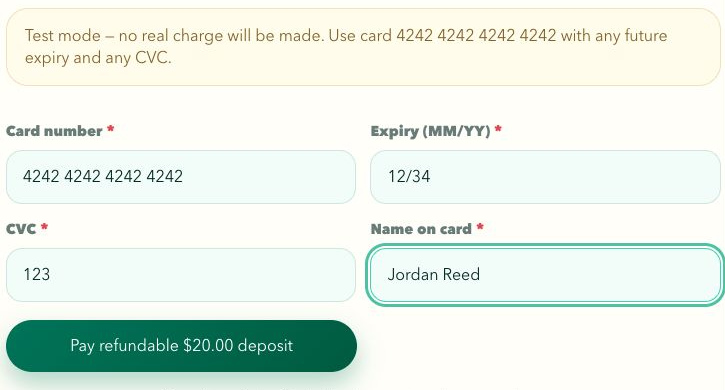
07Test mode uses a simulated form and the displayed test values. Open image ↗ Enter 4242 4242 4242 4242, expiry 12/34, CVC 123 and Jordan Reed.
You should seeThe actual simulated form is ready. These are test values, not a real card.Use Pay refundable $20.00 deposit once.
You should seeThe local flow proceeds to its result without charging a card.
When the screen stops
A required deposit without payment configuration reports a problem. Back to contact details returns to the form. If payment succeeded but booking saving failed, use the retained payment retry route described in Recovery.
How the example stays local
The fictional configuration uses the actual simulated form without a Stripe payment endpoint. No payment provider is contacted. A provider here means the outside payment service.
Customer task 6 of 6
Read what finished.
The result should match the appointment you requested.
Check the service, date, time, duration and deposit.
You should seeThe example repeats Consultation, October 27 at 9:00 AM, 30 minutes and USD 20.00.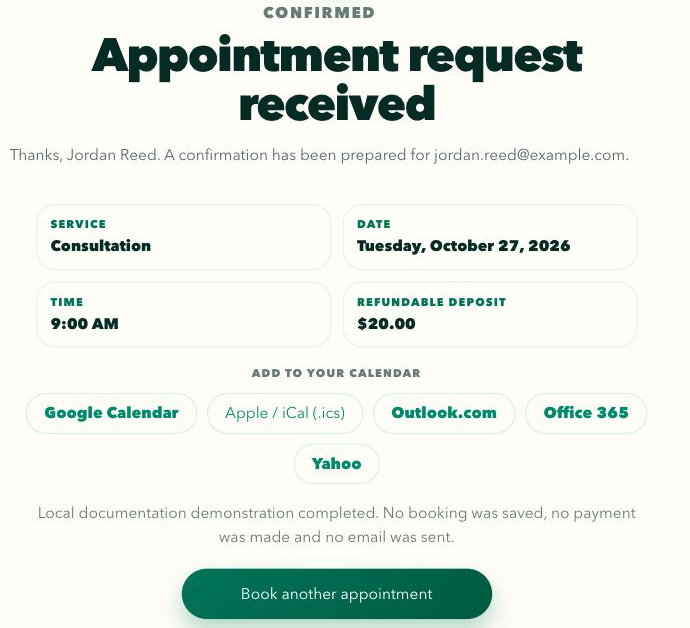
08The local result names the appointment and states the demonstration boundary. Open image ↗ Read the result message and any reference.
You should seeThe component says Appointment request received and a confirmation has been prepared. A server reference appears when supplied.Add a personal calendar entry if useful.
You should seeGoogle Calendar, Apple / iCal (.ics), Outlook.com, Office 365 and Yahoo links provide reminders. They do not approve a business request.
Starting again
Book another appointment begins a new customer flow. It does not change the appointment just completed.
For business staff
Find your staff route.
Studio is the business workspace. It requires an authorized account.
Sign in and confirm the workspace name.
You should seeThe observed Freelance workspace had an empty schedule and no active team. An empty workspace differs from an expired session.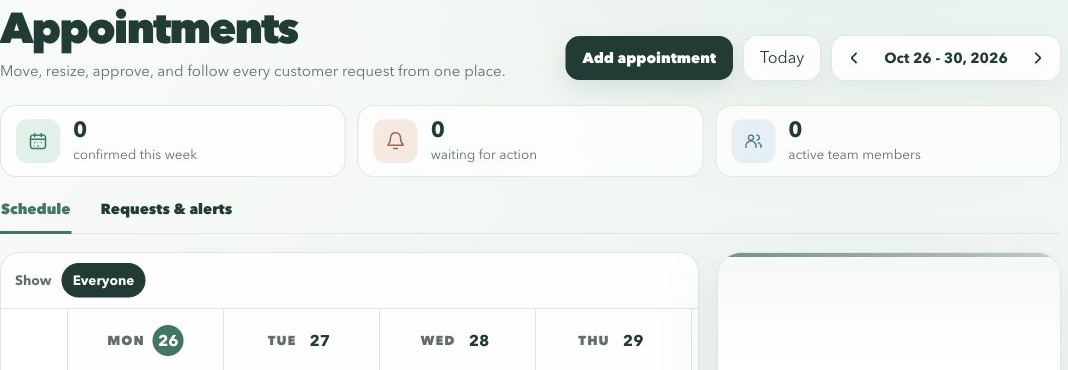
09An authenticated workspace can have an empty schedule. Open image ↗
| Your job | Open |
|---|---|
| Prepare a service and its openings | Business setup: Services, Team, Availability |
| Change appearance or publish a channel | Booking widget: Widget designer, Launch |
| Manage appointments | Appointments: Schedule, Requests |
| Check a deposit or message | Money; Customers: Messages |
Keep the examples separate
Freelance contains a draft Consultation set to one hour, USD 0 and no deposit, with no published service. It is not Jordan's fictional 30 minute, USD 20 Consultation. Earlier Sea & Kin Studio pictures are another separate example.
Staff setup
Define the service first.
Service rules determine what customers can request.
Open Business setup, then Services.
You should seeThe existing draft offering and its settings appear.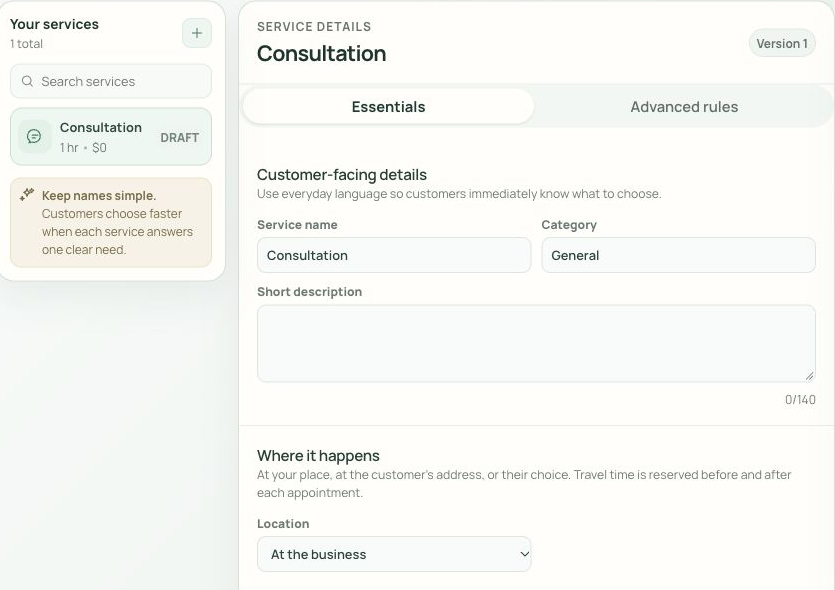
10The live workspace has its own draft service configuration. Open image ↗ Step 2
Enter Service name, Category, Short description and Default length. Set Service price separately from Deposit.
You should seeThe form shows the proposed offering; it is not saved yet.Step 3
Choose the rule values, using What the timing rules mean for help. Then Save service.
You should seeThe service uses its saved rules. A preview or unsaved field is not the saved configuration.
| Rule group | What to check |
|---|---|
| Payment | No deposit, Fixed amount, Percentage or Full payment; applicable amount or percentage |
| Availability | Assigned team and locations; Minimum notice, Book ahead, Capacity per start time |
| Duration | Shortest, Longest, Resize steps, Buffer before and Buffer after |
| Visibility and decisions | Active service, customer visibility, initial confirmation and later Schedule changes are separate settings |
What the timing rules mean
Minimum notice sets how soon a booking may start. Book ahead sets how far into the future someone can book. Capacity per start time is how many people can share a start. Shortest and Longest set allowed duration. Resize steps set the size of duration changes. Buffer before and Buffer after reserve gaps around the appointment.
Two kinds of approval
Confirm automatically and Review each request govern initial booking. Later Schedule changes has its own policy. The inspected revision's staff approval behavior is described under Schedule changes; it is not established as the current deployed behavior.
Staff setup
Connect people to openings.
A saved profile is different from a published customer calendar.
Open Team and add or select a member.
You should seeA new form is unsaved. Opening it alone does not create an active person.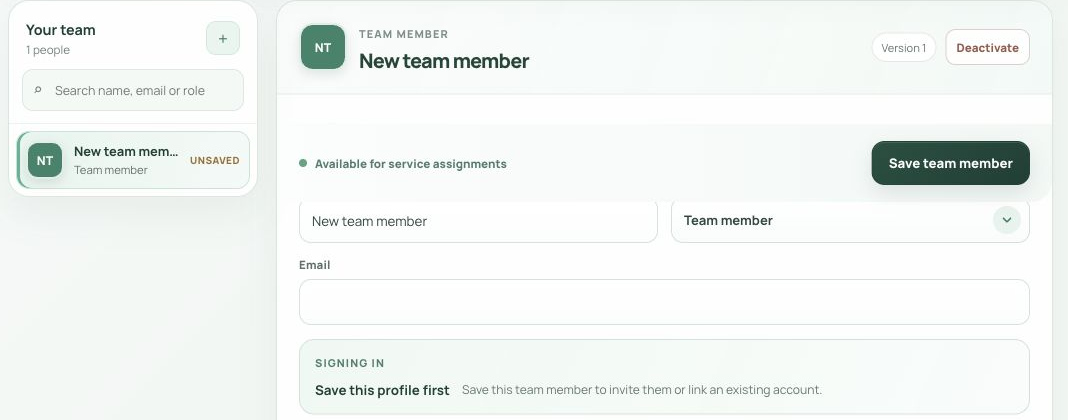
11Opening a profile creates an unsaved form, not a saved active person. Open image ↗ Step 2
Enter the name, role and contact details. Assign services and locations, then set working days and hours.
You should seeThe form shows the proposed profile and schedule.If time off is needed
Add time off with From, Through and an optional note.
You should seeThe draft includes the time off.Review the profile, then Save team member.
You should seeThe profile is stored. Saving is separate from publishing customer openings.Review calendar readiness before publishing openings.
You should seeThe panel identifies its date range, time zone and ready services. Save profiles before publishing means edits remain unsaved.
When expected times are missing
Check the active service, member, location, hours and publication state. The reviewed model also accounts for existing appointments and buffers. Do not create a duplicate offering just because a time is absent.
Staff setup
Design, then check Launch.
Appearance, setup readiness and publication are separate states.
Review Widget designer.
You should seeYour brand, Customer welcome, Color and finish and Saved design organize the current controls. Wide, Inline and Phone change the preview.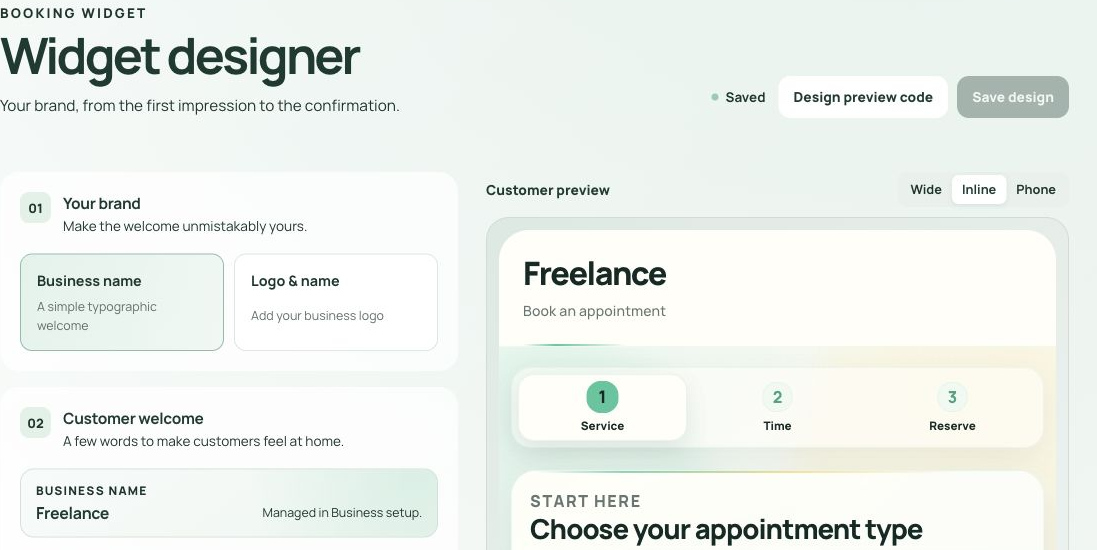
12Save appearance in Widget designer. Open image ↗ Use Save design when you intend to store a change.
You should seeIt is disabled when already Saved. Design preview code is a preview connection, not proof of installation.Open Launch and read the channel state.
You should seeHosted booking link and Add Chime to a website are separate routes. Check readiness before Save changes.
13Two of six essentials are complete; four setup items remain. Open image ↗
A stored design can remain private
Saved design shows Design address and Available to customers. A stored design can remain private when Available to customers is off. A design address or Saved label does not prove that a customer channel is ready.
Choose the correct connection
Hosted booking has Publish the hosted booking link, Open and Copy link. Website modes are On the page, Pop-up and Floating button, with Website preview and trusted website choices. Public connection code should never contain administrator credentials.
What the observed readiness meant
Readiness was 33%, two of six essentials. Business is open and Deposit payouts were complete because no deposit was required. Public service, Team coverage, Bookable times and Widget design remained incomplete. The website widget was paused, Not published yet, with zero connected websites and Finish setup to publish disabled. The broad Live badge did not make that channel ready.
Staff daily work
Add an agreed appointment.
Use this route for an appointment already arranged outside the customer widget.
Prepare the service and team member first. If choices are absent, finish setup before continuing.
Open Add an appointment from Schedule.
You should seeThe manual appointment form opens.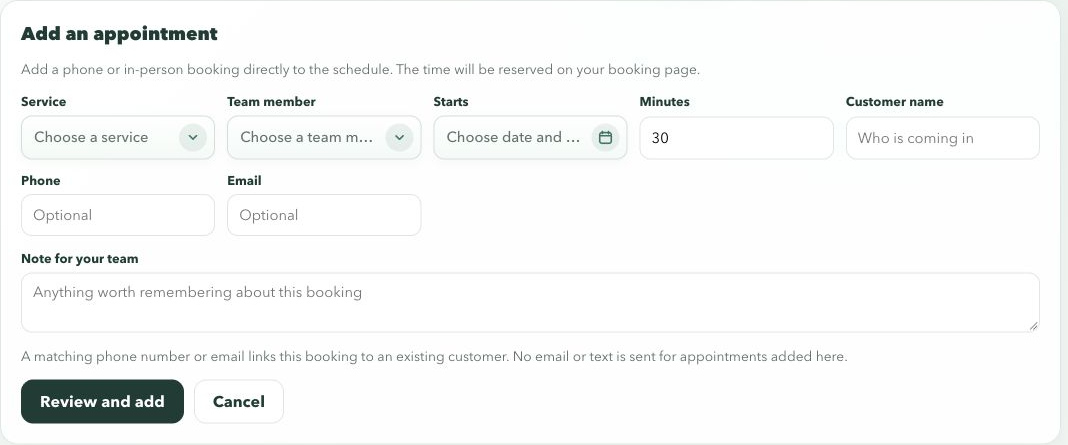
14Review the record before adding it. Open image ↗ Step 2
Choose Service, Team member and Starts. Check editable Minutes and Location when applicable.
You should seeMinutes starts with the service length. The draft has the proposed service, person, time and duration.Enter required Customer name. Add Phone, Email and Note for your team if useful.
You should seeThe draft identifies the customer; those additional fields are optional.Choose Review and add.
You should seeThe review shows the appointment before it is saved.If the review is correct
Choose Add appointment.
You should seeIn the reviewed implementation, the schedule opens that week and stops offering the time to customers.
Contact matching
The reviewed route can link a matching existing customer by phone or email. A completed form or review screen alone does not establish a saved appointment.
Reviewed source route
Review a schedule change.
A proposed time and an applied change are different results.
Adjust the appointment time, length, person or location.
You should seeDragging and typed edits use the same reviewed route. Buffers can explain an overlap warning.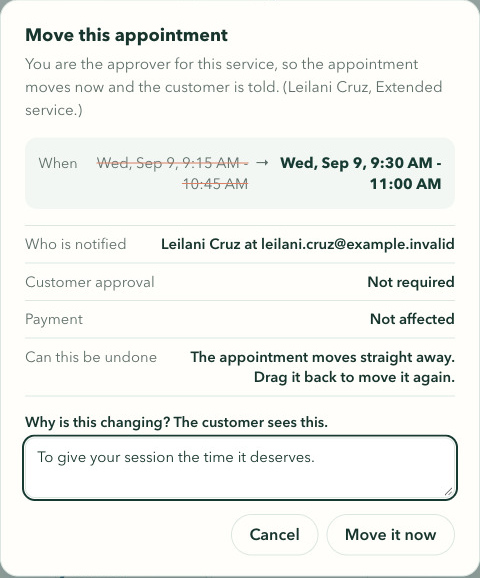
15Earlier populated example: compare the original and proposed appointment. Open image ↗ Enter Why is this changing? and open the review.
You should seeThe old and new values, reason and recipient appear. An unchanged record is not sent again.Choose the action named in the review.
You should seeMove it now applies the change. Ask the customer to approve leaves the original active while Waiting for customer shows the proposal.
Withdrawing a pending proposal
Before a customer decision, use Withdraw request to end the proposal. A pending request is different from an applied change.
A limit of the inspected revision
That revision sends staff related modes to customer approval because its staff channel is unfinished. This does not establish a deployed limitation. Live templates include newer team and coverage messages, but templates alone do not prove an approval route.
Reviewed source route
Resolve the request, then check its state.
A business decision and a financial action should not be confused.
Open the request and read its appointment details.
You should seeThe initial service policy determines whether a booking confirms automatically or needs review.Review the decision and intended recipient.
You should seeThe inspected route offers Approve and notify or Decline and reopen.If the reviewed decision is appropriate
Choose Approve and notify to confirm, or Decline and reopen to decline.
You should seeApproval confirms the request. Declining reopens the time. These actions were not exercised in the live empty workspace.
Staff daily work
Read the deposit state.
The current financial page is headed Deposits.
Open the deposit workspace under Money.
You should seeDeposits, Deposit rules and Connection are separate areas.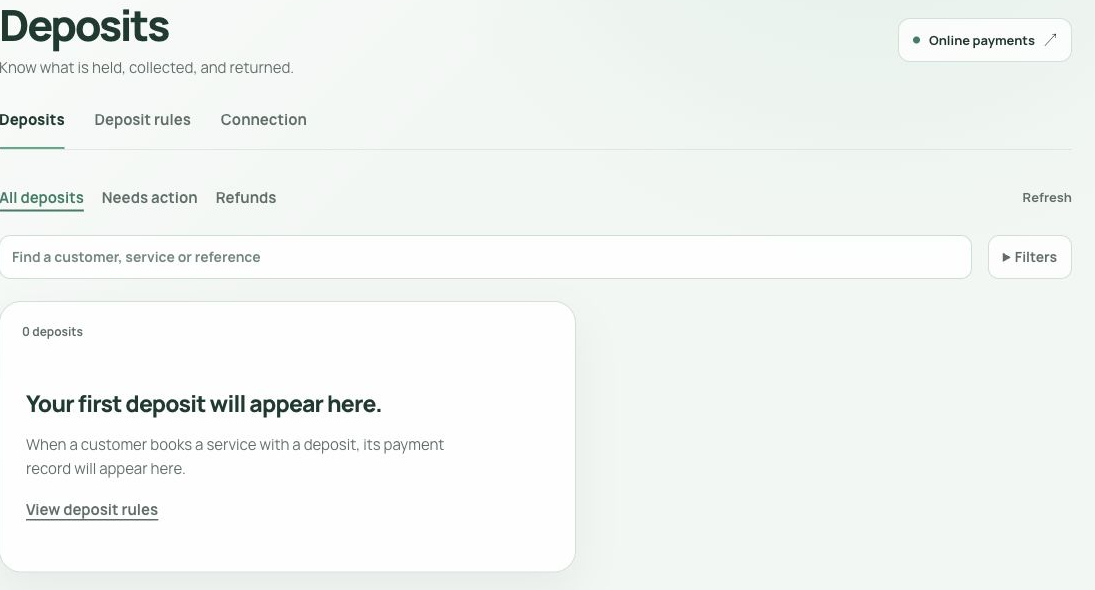
16An empty Deposits list does not demonstrate a payment action. Open image ↗ Search or choose All deposits, Needs action or Refunds.
You should seeRefresh updates the list. The observed workspace had zero deposits, so no financial row action was exercised.
| State | Meaning |
|---|---|
| Authorized | A hold; money is not yet collected |
| Collected | Money was captured |
| Released | An uncaptured hold ended |
| Refund requested | Previously collected money is being returned; bank posting is separate |
Reference for a populated record
The inspected implementation and earlier examples include collection, release, refund and provider sync actions with permission and version checks. They do not establish current row button labels. New connected account payments retain their originating account; historical records without one use the platform branch.
Staff daily work
Check the message, not just the booking.
Activity, Templates and Sending setup answer different questions.
Use Activity to find a message.
You should seeSearch messages, channel choices, Refresh and Needs attention, Upcoming, Recent, Stopped or All narrow the list. Select a record for content and delivery history.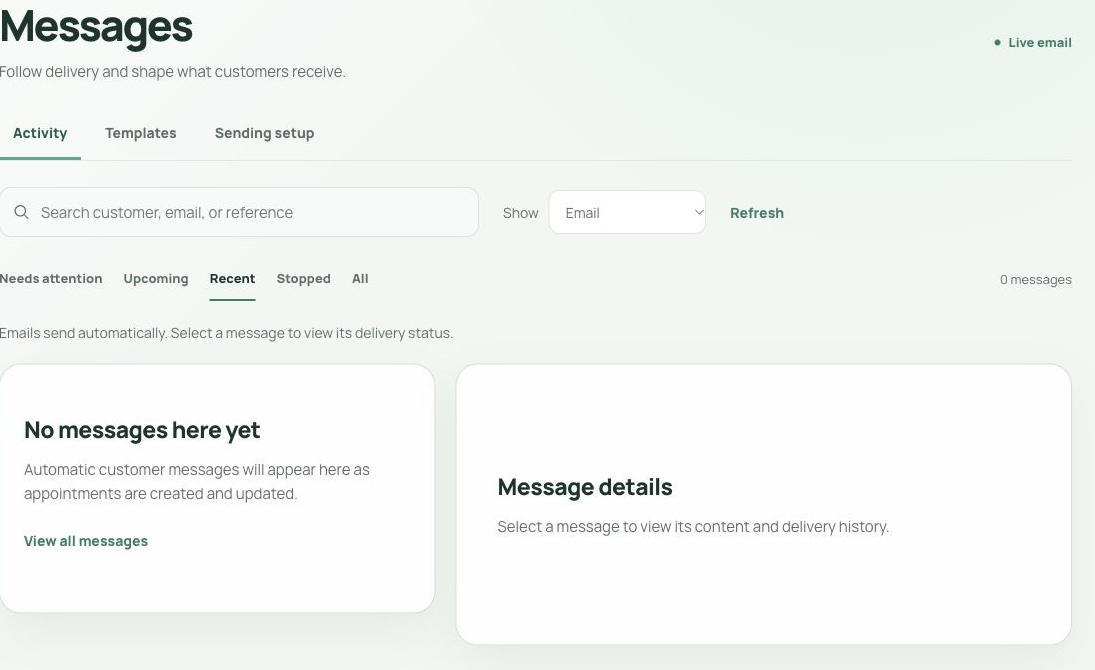
17Activity is where you inspect a message and its history. Open image ↗ Use Templates to inspect published content.
You should seePublished email uses sample details. Wide, Narrow and Plain text change its preview; viewing it sends nothing.
18A sample preview is different from sending an email. Open image ↗ Read Sending setup for delivery status.
You should seeIt shows identity, reply destination and service state. Refresh status updates that view.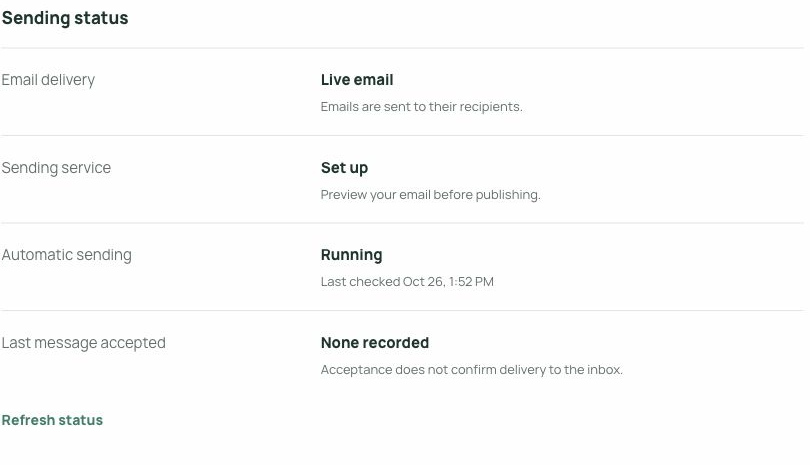
19Running does not mean an email reached an inbox. Open image ↗
What the live state established
The workspace showed Live email, zero messages, Sending service Set up and Automatic sending Running. Last message accepted was None recorded. Acceptance does not confirm inbox delivery. Replies go to the displayed mailbox, not into Chime.
Editing is a separate task
Edit email starts a content change. A published sample, an edit and a sent preview are different actions. The current editor was not exercised; older template controls are not presented as current instructions.
Quick reference
When the normal route stops.
Start with the visible symptom and keep completed work intact.
Continue unavailable
Check the selected service/time, terms document gate or required fields at that stage.
Opening or deposit changed
Read the reported conflict and revisit the current choice.
Payment recorded, booking unfinished
Use Retry booking in the retained payment route.
Edit conflict or newer version
Reload the record and compare your intended change; include buffers.
Studio asks for sign in
Use the assigned account and workspace.
Missing setup or delivery failure
Read that area's state, permissions and reported issue.
Payment retry wording
The reviewed component can show Payment received — finishing your booking. Retry booking retains the payment identifier. If the problem persists, ask the business for help instead of starting a separate payment.
When this reference is insufficient
Source checks do not establish recovery from every provider or simultaneous edit failure. Preserve the reference and error details when seeking help; a successful action should not be repeated just to clear another screen.